Free. Open-source. Offline. And no, there’s no catch.
Imagine an app that does exactly what you ask, nothing more, nothing less — no subscription pop-ups, no word limits, no account to create, no server quietly sipping your voice data in the background. That’s Handy in a nutshell. And in a world where every other dictation tool seems to be one pricing tier away from truly working, that alone feels almost radical.
Handy was born out of necessity. Developer CJ Pais built it after a finger injury made typing genuinely painful. He needed a simple, reliable way to speak text into any app on his computer, and when nothing out there satisfied him, he made it himself. The result is a lean, no-nonsense speech-to-text tool that now sits at over 23,000 GitHub stars and keeps shipping new versions at a pace that would embarrass many commercial products.
But for some people, Handy isn’t just a convenience tool. It’s something more fundamental than that.
A Personal Story: When Typing Stops Being an Option
I have a progressive illness. For a long time, I typed with one finger — slowly, carefully, one hand doing the work of two. Fifteen minutes was about my limit before my hand started protesting. Then even that became too much, and I found myself reduced to short phrases, a couple of words at a time. Conversations became exhausting. Writing an email could take days.
For a while, I switched to an on-screen keyboard and a mouse. The built-in autocomplete made it manageable — surprisingly usable, actually — but overworking that one remaining finger eventually caused inflammation, and the cycle repeated. Back to short phrases. Back to silence.
Then Microsoft released their Voice to Speech feature in a Windows update, and for a while it felt like a lifeline. I could speak again. I could write again. Real messages, real length, real conversations — not just a word or two squeezed out between rests. But the tool was unreliable. It made a lot of errors, froze regularly, and the recognition quality just wasn’t there for serious use.
The breakthrough came through a friend. We were both dealing with similar situations — he has SMA too — and when I showed him the Microsoft tool, it turned out his older Windows version didn’t support it at all. So we went looking for something else. And we found Handy.
It’s not an exaggeration to say it changed things. Fast, accurate, works in whatever app is active, supports multiple languages including English, Romanian and Russian, completely free. For two people who had spent years adapting to shrinking communication windows, getting that back was quietly significant.
I mention this not to make the review sentimental, but because it’s context that matters. Handy gets reviewed mostly by developers and tech enthusiasts who treat it as a workflow optimisation. That’s a legitimate perspective. But the app also quietly serves people for whom it’s less about convenience and more about participation — in conversations, in correspondence, in ordinary online life. The fact that it’s free, open-source, and doesn’t require an account or a subscription isn’t just a nice detail. For some users, it’s what makes it accessible at all.
CJ Pais built Handy after a hand injury. Some of his users are still dealing with theirs.
What Handy Actually Does
The pitch is beautifully simple: hold a hotkey, speak, let go — and your words appear in whatever text field currently has focus. Browser, code editor, notes app, messenger, email client — Handy doesn’t know or care what’s open. It just pastes the transcription and gets out of your way.
Everything happens locally. When you speak, no audio is sent to any server. The model runs right on your machine, processes what you said after you stop speaking, and delivers the result in roughly 2 to 5 seconds. It’s not instant — that’s one of Handy’s honest trade-offs — but your voice stays yours.
Key Features, Honestly Described
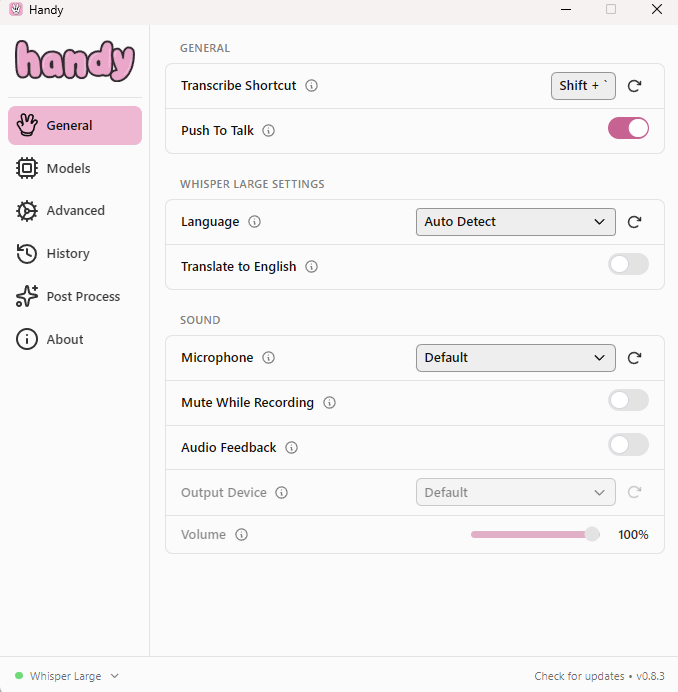
Push-to-talk by default — hold the hotkey while you speak, release when you’re done. There’s also a toggle mode if you’d rather not hold anything. The shortcut is fully configurable from the General tab.
Auto-paste — the transcribed text lands directly in whatever app you’re using, no copy-paste step needed. One caveat: if you switch windows during the 2–5 second processing window, it can paste in the wrong place. Stay focused and it works beautifully.
Language and translation — language can be set to Auto Detect or locked to a specific one. Some models also support optional translation to English, toggled right from the General settings.
Voice Activity Detection (Silero VAD) — Handy trims silence from your recordings before processing. You don’t have to be precise about when you stop speaking; it handles the cleanup.
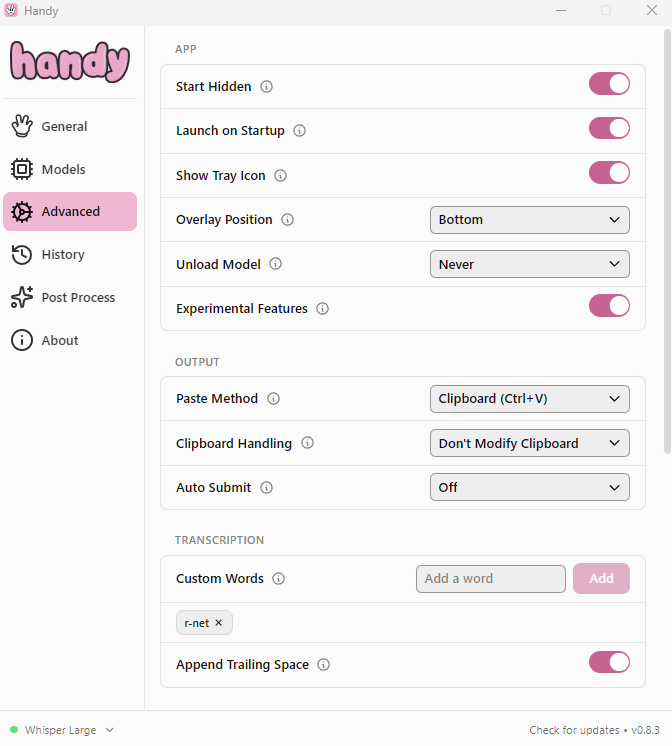
Custom word lists — you can train Handy to recognise names, jargon, technical terms, and anything else the base models tend to mangle. Words are added one by one from the Advanced tab.
Paste Method — by default Handy uses Clipboard (Ctrl+V), but this can be changed in Advanced settings depending on your system and workflow.
Start Hidden / Launch on Startup / Tray Icon — Handy is designed to live quietly in the background. Toggle these from Advanced to make it fully invisible until you need it.
Overlay Position — a small recording indicator appears on screen while you speak; you can pin it to the bottom, top, or corners.
Command-line interface — a full CLI for scripting, automation, and integration into development workflows.
Raycast extension on macOS — for Mac users who live inside Raycast, Handy plugs in natively.
Recording history — your recent transcriptions are stored locally in the History tab so you can revisit them at any time.
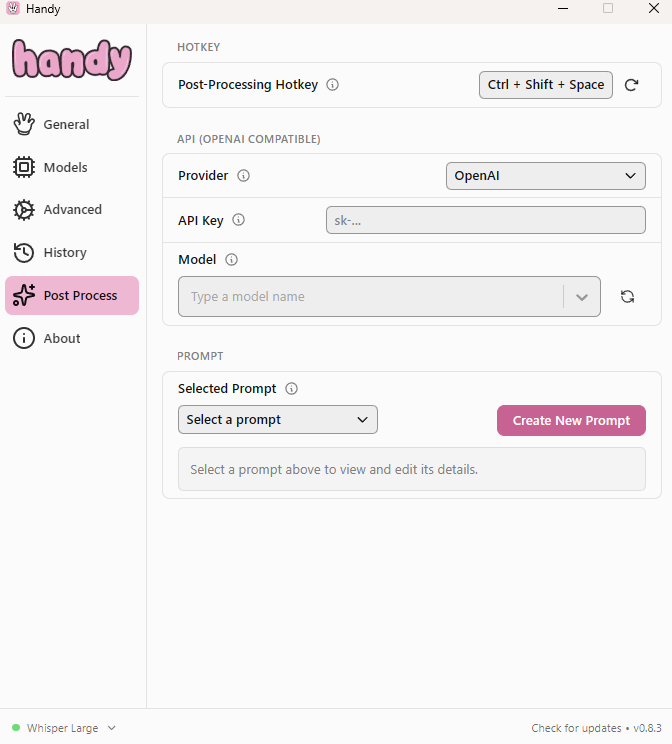
LLM post-processing — the Post Process tab lets you connect any OpenAI-compatible API (OpenAI, local models via Ollama, or others) to run a custom prompt over your transcription after it’s done. Clean up filler words, reformat into bullet points, summarise — whatever prompt you write. You can create and save multiple named prompts and trigger them with a dedicated hotkey (Ctrl+Shift+Space by default).
Platform Support: The Linux Story
Here’s where Handy separates itself from almost everything else in the dictation space: it runs on Linux.
macOS has no shortage of polished dictation apps. Windows is covered. Linux users have historically been stuck with whatever their distro’s built-in accessibility tools could manage. Handy supports Ubuntu 22.04 and 24.04 out of the box, with Wayland and X11 both handled.
This alone has made Handy something of a cult favourite in the Linux and open-source communities.
Privacy: The Simplest Story Possible
There is no cloud transcription mode. There is no telemetry pipeline. There is no account, no profile, no usage data being collected. The only network activity Handy performs is downloading models when you first set it up, and optionally checking for updates.
Since the code is MIT-licensed and publicly available on GitHub, anyone who wants to verify these claims can read every line of it.
Under the Hood: Every Model, Explained
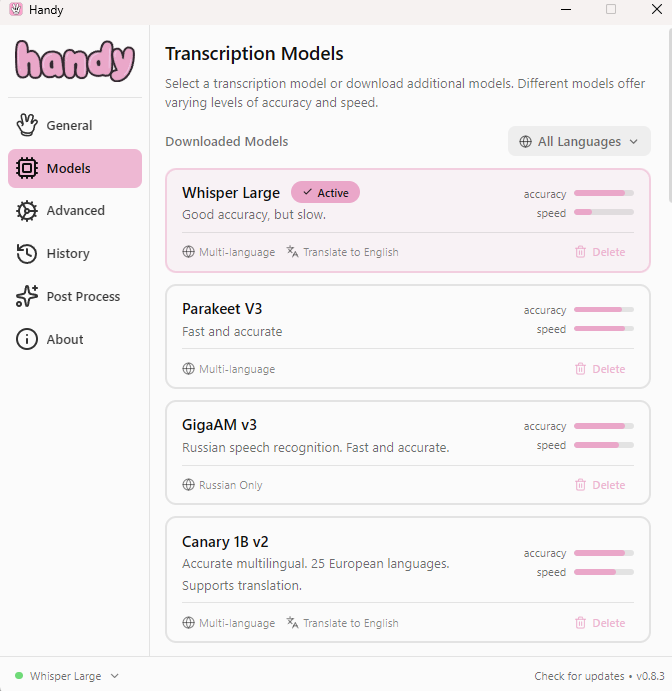
Handy isn’t locked to a single AI engine — it lets you choose from a broad lineup of local speech models. The right choice depends on your language, hardware, and how much you care about accuracy vs. speed. All models run entirely on your machine; none send audio to the cloud.
At a Glance
| Model | Size | Languages | Speed | Best For |
|---|---|---|---|---|
| Whisper Large ★ | ~1.1 GB | 99+ | Slower | Maximum accuracy, multilingual |
| Whisper Turbo | ~1.5 GB | 99+ | Moderate | Speed + quality balance |
| Whisper Medium | ~469 MB | 99+ | Moderate | Good all-rounder |
| Whisper Small | ~465 MB | 99+ | Fast | Low-resource multilingual |
| Parakeet V3 ★ | ~478 MB | 25 European | Fast | Best default, CPU-only |
| Parakeet V2 | ~451 MB | English only | Fast | English speed |
| GigaAM v3 | ~225 MB | Russian only | Fast | Best Russian model |
| Canary 1B v2 | ~692 MB | 25 European | Moderate | European + translation |
| Canary 180M Flash | ~146 MB | 4 languages | Fast | Lightweight translation |
| Breeze ASR | ~1.0 GB | Multilingual | Moderate | Taiwanese Mandarin |
| SenseVoice | ~152 MB | 5 East Asian | Fastest | Chinese/Japanese/Korean |
| Moonshine Base | ~55 MB | English only | Very fast | Ultra-light English |
| Moonshine V2 Tiny | ~31 MB | English only | Fastest | Minimum footprint |
| Moonshine V2 Small | ~99 MB | English only | Very fast | Speed + accuracy balance |
| Moonshine V2 Medium | ~192 MB | English only | Fast | Better English quality |
| Custom GGML | any | depends | depends | Power users |
★ My personal daily drivers — for different reasons, as explained below.
Whisper Family (OpenAI)
The model family that started the local speech-to-text revolution. Supports 99+ languages and optional translation to English. One important caveat across all Whisper variants: they can hallucinate — inventing words during silences. It doesn’t show up in benchmarks, but it shows up in real use.
Whisper Large (~1.1 GB) — My primary model.
The flagship. Highest accuracy across all 99+ languages, best on accents, technical vocabulary, and complex sentence structure. Slow — expect 3–5 second delays — and needs a capable GPU on Windows/Linux. But when accuracy matters most, nothing in the Whisper family beats it.
Whisper Turbo (~1.5 GB)
Optimised for speed without sacrificing much quality. A strong choice for Apple Silicon users. Doesn’t support translation. Can be unstable on some Windows/Linux GPU setups.
Whisper Medium (~469 MB)
The sensible middle ground. Good accuracy, reasonable speed, supports translation. A solid all-rounder.
Whisper Small (~465 MB)
The lightest Whisper. Fast and low on resources. Accuracy is the weakest in the family — struggles more with accents and background noise.
Parakeet Family (NVIDIA)
NVIDIA’s open answer to Whisper — Apache 2.0 licensed, lower hallucination rate, runs CPU-only. Numbers come out as words rather than digits. Auto-detects language.
Parakeet V3 (~478 MB) — My second daily driver, and the one I’d recommend to most people first.
Fast, accurate, CPU-only, automatic language detection across 25 European languages including Romanian and Russian. On Apple Silicon it approaches near-real-time.
Parakeet V2 (~451 MB)
English only. Largely superseded by V3.
GigaAM v3 (Sberbank / SaluteDevices)
The best Russian speech recognition model in Handy. Trained on 700,000 hours of Russian speech data. Outperforms Whisper Large on Russian benchmarks by a significant margin. Small footprint (~225 MB), fast, CPU-only. If you dictate in Russian, this is the model to use.
Canary Family (NVIDIA)
Transcription and translation across European languages. Important: Canary does not auto-detect language — always set it manually, otherwise it translates instead of transcribing.
Canary 1B v2 (~692 MB) — 25 European languages, full translation, high accuracy.
Canary 180M Flash (~146 MB) — English, German, Spanish, French only. Fast and light.
Breeze ASR
Optimised for Taiwanese Mandarin with code-switching support — handles sentences that mix Mandarin and other languages mid-phrase. Around 1.0 GB. The best Handy option for Taiwanese Mandarin.
SenseVoice (FunAudioLLM / Alibaba)
The fastest model in the lineup. Covers Chinese (Mandarin and Cantonese), English, Japanese, and Korean. At ~152 MB it’s compact and transcribes extremely quickly. Ideal for East Asian language users who want the fastest possible response time.
Moonshine Family (Moonshine AI)
English-only models built for efficiency. Despite their tiny size, they match or beat Whisper Large on English benchmarks. Low hallucination rate, CPU-only.
Moonshine V2 Tiny (~31 MB) — the smallest model in all of Handy. Nothing lighter exists.
Moonshine V2 Small (~99 MB) — good balance of speed and quality.
Moonshine V2 Medium (~192 MB) — better accuracy, still fast. Recommended Moonshine pick.
Moonshine Base (~55 MB) — original model. Very fast, good on accents.
Custom GGML Models
Any Whisper-compatible .bin model file dropped into Handy’s models/ folder will appear in the picker on next launch. No official support — quality depends entirely on the model you bring.
How to Choose
- Starting fresh? → Parakeet V3. Fast, smart, works on CPU, handles English, Romanian and Russian.
- Need maximum accuracy? → Whisper Large.
- Dictating in Russian? → GigaAM v3. It’s not even close.
- Need translation too? → Canary 1B v2.
- Old or low-powered hardware? → Moonshine V2 Medium or Moonshine Base.
- East Asian languages? → SenseVoice.
- Taiwanese Mandarin? → Breeze ASR.
- Absolute minimum footprint? → Moonshine V2 Tiny at 31 MB.
The Trade-Offs (Because Nothing is Perfect)
Handy doesn’t clean up your words — you get verbatim output, exactly what the model heard. There’s no AI rewriting, no filler-word removal, no tone adjustment. If you want polished text, you’ll do that editing yourself.
There’s no mobile app. Handy is desktop-only.
The transcription delay — that 2 to 5 second window after you stop speaking — is a real workflow adjustment. Occasionally the first word or two of a transcription gets clipped. Bluetooth microphones add another second or two of latency, though the “Always-On Microphone” setting largely solves that.
None of this is dealbreaking for what Handy is. It’s a young open-source project, version 0.8.3 as of mid-2026, and the version numbering is the developer’s candid way of saying: we’re still building this, but what’s here works.
The Bottom Line
Handy is the rare piece of software that does exactly what it says, costs nothing, respects your data completely, and actually ships updates. The project has real momentum, a growing community, and a developer who built it to scratch his own itch — which is historically how the best tools get made.
For developers and power users, it’s a flexible, hackable, privacy-respecting dictation layer that fits into any workflow. For people who type with one finger, or can’t type at all — it’s something quieter and more important than that. It’s a way back into the conversation.
It’s not trying to be everything. It’s trying to be one thing, done well. And for a lot of people, that’s more than enough.
Download: handy.computer ·
Source code: github.com/cjpais/handy ·
Documentation: handy.computer/docs