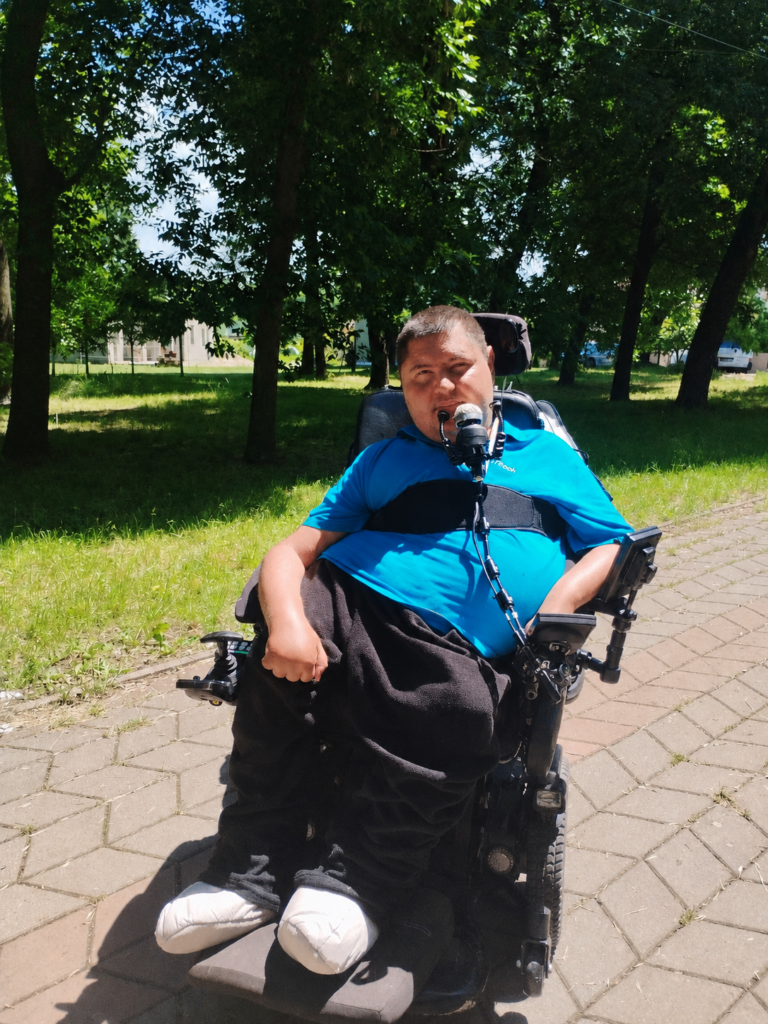
My name is Andrei Cebotar. I’m 37, I live in Moldova, and I have Spinal Muscular Atrophy.
My hands get tired fast — by the end of the day I often can’t feel them at all. I can press one mouse button. That’s mostly what I have to work with. And yet I play games, I write, I have conversations online. This is how.
This isn’t a neutral roundup. These are the tools I use to access my computer and play games. Some of them are part of my daily routine, others I tried and eventually stopped using. What works for me may not work for everyone, but this is the setup I’ve built around my own needs.
PlayAbility — my face is my controller
PlayAbility is a free Windows app that maps facial expressions and head movements to any game input. You set it up through a webcam — no extra hardware. And it works with any PC game that accepts a standard controller or keyboard.
Here’s what my setup actually looks like in practice: I raise both eyebrows — my character jumps. I raise my left cheek — I drink a potion. I raise my right cheek — I activate a specific skill. These are real mappings I use in real games, right now.
What makes this work is that the gestures feel natural after a while. You stop thinking “raise left cheek” and just do it. The response is fast enough that it doesn’t break the flow of gameplay. And because it creates a virtual Xbox controller in the background, the game has no idea you’re not using a standard input — no mods, no special settings needed.
It also works outside of games. You can map expressions to mouse clicks, scrolling, keyboard shortcuts. For someone with one working mouse button, that’s not a small thing.
PlayAbility is free. There’s a paid Pro version if you want unlimited profiles, but everything works without paying.
Handy — I speak, it types
Handy is a free, open-source speech-to-text app. You press a shortcut, speak, release — and your words appear in whatever text field your cursor is in. Any app, any website, anywhere on your computer.
I use it every single day. It has genuinely changed how I communicate. Typing is physically expensive for me — Handy removes that cost almost entirely for text. Messages, emails, search boxes — I speak instead of type.
What sets it apart from Windows Voice Access or cloud dictation tools is that it processes audio locally. Your voice never leaves your computer. It’s also simpler — one job, done well. Press, speak, done.
I used Windows Voice Access before Handy. It helped, but the accuracy wasn’t great. Handy is noticeably more reliable, and the local processing means it works without an internet connection.
Xbox Adaptive Controller — the foundation I build on
For a long time I didn’t use a standard keyboard at all. Instead I used the Razer Tartarus — a one-handed keypad with a stick and programmable buttons. It let me build exactly the macros I needed without reaching across a full keyboard. For someone with limited hand mobility, the compact layout and low-force buttons make a real difference.
More recently I moved to the Xbox Adaptive Controller, and it’s more flexible. It’s not a controller by itself — this is important to understand before you buy it. It’s a hub: a large flat surface with two big buttons and a row of 3.5mm ports on the back, each of which accepts an external switch, joystick, or pedal. You build the layout around your body, not the other way around.
I use it with a joystick and switch buttons. The physical switches require very little force — that matters when your hands tire quickly.
It works on PC and Xbox. If you’re on PlayStation, Sony has their own equivalent — the PlayStation Access Controller, which works on the same principle.
The Logitech Adaptive Gaming Kit is worth knowing about too — it’s a set of buttons, triggers, and switches designed to plug into the Xbox Adaptive Controller. It gives you more options without spending a lot.
Tobii Eye Tracker — useful, but I stopped using it
The Tobii Eye Tracker 5 sits below your monitor and tracks where you’re looking. In games, it moves the camera in the direction of your gaze. I used it to play Kingdom Come: Deliverance — wherever I looked, the camera followed. For an open-world RPG, that’s genuinely immersive and reduces the need to constantly move a stick just to look around.
The problem for me was physical. After extended sessions, my eyes hurt — the infrared tracking seemed to cause strain over time. I eventually stopped using it for that reason.
One thing worth knowing: Tobii’s native game integration moves the camera, but it doesn’t control your mouse cursor by default. For that you need a separate app called Project IRIS. It lets you control the mouse pointer with your gaze and set up interaction zones on your desktop — areas you look at to trigger actions like clicks or keypresses. It costs €39 and works with Tobii EyeX, 4C, and Eye Tracker 5. If you want to use eye tracking beyond games — for navigating Windows, browsing, anything — IRIS is what makes that possible.
If eye strain isn’t an issue for you, it’s worth trying. Eyeware Beam is a software alternative that uses a regular webcam or iPhone instead of dedicated hardware — cheaper, slightly less precise, but no infrared involved.
Talon Voice — powerful, but not for me
I also tried Talon Voice. It’s a free, highly capable hands-free input system — voice control, noise recognition, eye tracking, all combined. You can theoretically control your entire computer without touching anything: move the mouse, click, type, run scripts, even code.
The problem for me was false positives. Too many unintended triggers — the system would pick up ambient sounds or normal speech and fire commands I didn’t mean to send. Managing that became more work than the tool was saving me. I moved on.
That said, Talon has a large and active community, and people who invest time in configuring it properly seem to get a lot out of it. It’s also worth noting that it has a significant learning curve — the setup is technical, and it’s not a plug-and-play experience. If you’re comfortable tinkering, it might be worth exploring. If you want something that works quickly without deep configuration, Handy is a much simpler starting point for dictation.
The combination is the point
None of these tools solves everything on its own. What actually works is layering them. Right now, on a typical day, I’m using PlayAbility for in-game actions, Handy for any text I need to write, and the Xbox Adaptive Controller for movement. Each covers what the others can’t.
If you have SMA, cerebral palsy, muscular dystrophy, or any condition that limits fine motor control — the starting point I’d suggest is PlayAbility and Handy. Both are free, both require nothing beyond a webcam and microphone, and both can meaningfully change what’s possible at a computer, not just in games.
The hardware — adaptive controllers, eye trackers — comes later, once you know what gaps remain.
In a follow-up piece, I write about where I think this is all heading — specifically, EMG wristbands and what they could mean for people like me. But that’s the future. This is what works right now.
1 Comment