Press "Enter" to skip to content

Author: Andrei Cebotari

An Extraordinary Collaboration That Changed My Life

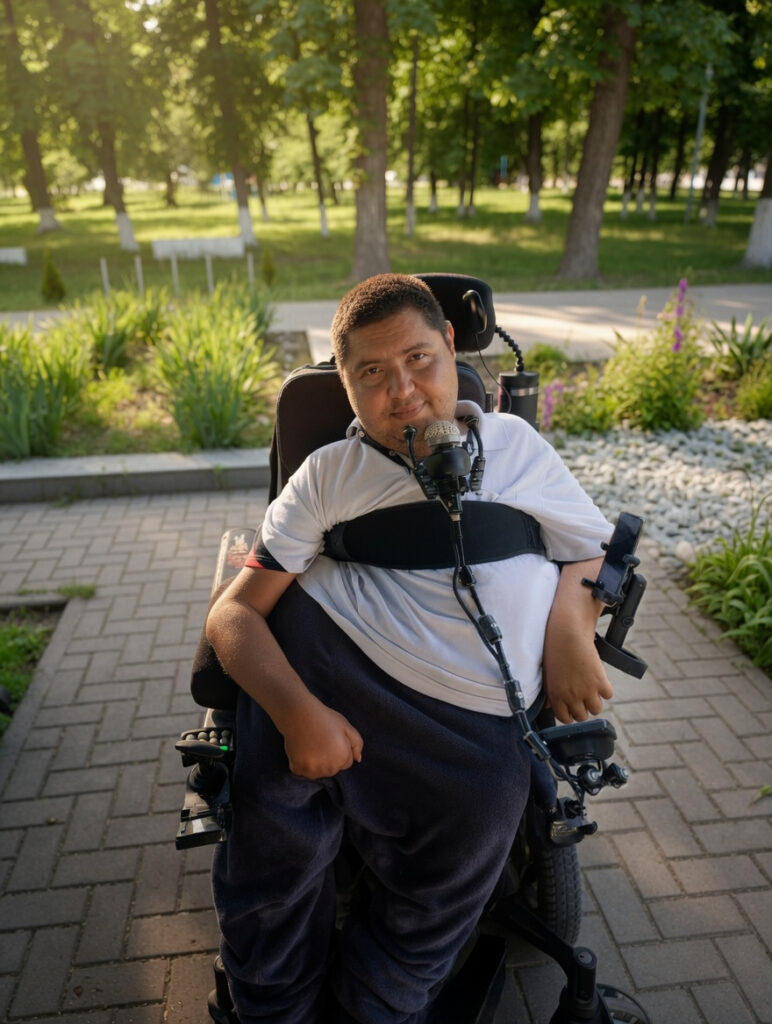
Andrei Cebotari in a power wheelchair with chin control, outdoors in a park on a sunny day
Andrei Cebotari using a power wheelchair with chin control during a walk in the park.

My journey began when I finally outgrew the wheelchair I had used every day for nearly twenty-four years. It no longer met my needs. My feet constantly pressed against the floor, causing severe pain, and as my neck muscles weakened, it became increasingly difficult to keep my head upright throughout the day. More and more often, my head would simply fall backward. I knew I needed a wheelchair with proper support, including a headrest.

We contacted the local social services, which provide standard wheelchairs every three years, hoping they could help. Unfortunately, they told us they did not have access to specialized equipment. Meanwhile, my old wheelchair was literally falling apart. The right axle had become bent, and it was obvious that I could not continue using it much longer.
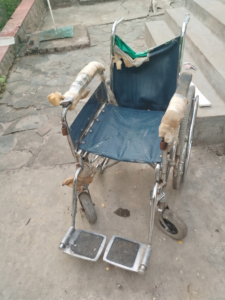
Old manual wheelchair in heavily worn condition with torn upholstery and damaged armrests
The manual wheelchair I used for 24 years. Decades of daily use left visible wear on almost every part of the chair.

My mother convinced me that we would have to find a solution ourselves.

I started searching local forums and classified ads for used power wheelchairs. There were a few available in Moldova, but every one I found was in terrible condition. Some were heavily rusted, while others were missing important parts.

Since my father worked in France, I decided to expand my search there. The market was much larger, and I also had relatives living nearby. I made an agreement with my cousin’s husband: if I found a suitable wheelchair, he would inspect it and purchase it on my behalf.

I spent countless hours browsing listings on LebonCoin. Several promising Quantum models slipped away before we could finalize a deal. One excellent Invacare looked perfect, but it was located on the opposite side of the country, making pickup impossible. Around Paris and the surrounding region, most options were either extremely expensive or very outdated.

Eventually, I found a Permobil F3 located roughly 250 miles from Paris. My cousin’s husband contacted the seller, and everything initially seemed promising. Then, a few days later, the seller informed us that the batteries were dead. Traveling such a long distance without being able to test the wheelchair was simply too risky.

Fortunately, another option appeared: a Permobil F5 located only about twenty-five miles from my cousin’s home. He visited the seller the very next day and purchased it for me.

In the photos, it looked fantastic.

Only after the purchase did we discover that it already had 3,600 miles on it.

I was disappointed, but I had little choice. I needed a wheelchair.

That same evening, it was shipped to Moldova. Four days later, it arrived at my home.

I could hardly contain my excitement.

At the same time, I was terrified.

My right hand had become significantly weaker over the years, and I worried constantly about whether I would even be able to drive the chair.

When it finally arrived, they delivered it directly to our house. We immediately attempted to transfer me into it using a hoist.

The first attempt failed.

The upper lateral supports were positioned too high and too close together. The previous owner had been much thinner than I was. We decided to remove them, but even that became a challenge. My mother searched the house for tools and found a set of hex keys that barely fit. After a tremendous effort, she managed to remove one support. The second one refused to move.

She spent over an hour fighting with it.

We called a neighbor who promised to help but never showed up. After waiting for two hours, my mother went outside and asked another neighbor, a seventy-six-year-old man, for assistance.

At first he refused, insisting that he knew nothing about wheelchairs. Eventually he agreed to try.

For half an hour he struggled with the seized bolts. Nothing worked. Finally, he fetched a hammer.

I watched in absolute horror as he struck my newly purchased wheelchair with it.

Remarkably, the bolts finally came loose.

Afterward, he practically fled the scene.

Another neighbor later helped us adjust the backrest, and we tried once again to seat me in the chair. This time I could sit, but only on the very front edge of the seat. It was cramped, unstable, and extremely uncomfortable.

We stopped for the day.

The following morning, my mother watched YouTube videos and widened the chair by adjusting the armrests. Unfortunately, many of the adjustment bolts had rusted solid while the wheelchair sat unused in a garage. We still couldn’t position everything correctly.

When I sat down again, a new problem appeared.

The cushion was far too uncomfortable.

After twenty or thirty minutes, my left leg would go numb and intense pain would begin.

That marked the beginning of a long and exhausting struggle.

Every day we adjusted something. The headrest. The backrest. The seating position. The leg supports.

Nothing worked.

Without proper support around my pelvis, I constantly slid to one side and ended up pressing most of my weight against the armrest. Large bruises formed along my left side. I still could not tolerate more than thirty minutes in the chair.

I felt completely helpless.

The wheelchair that was supposed to restore my independence had become a source of pain and frustration.

Day after day, failure after failure, I sank into depression.

I couldn’t use the wheelchair.

I couldn’t properly use my computer.

I cried because I felt trapped.

Desperate for solutions, we began improvising.

An old transfer board that I no longer used was attached to the chair using wire and zip ties. The setup created additional support, but introduced new problems. Every time we needed to adjust the backrest or use the lift function, we had to remove and reattach the board.

Even then, the armrests dug painfully into my ribs.

We added furniture foam.

Then more foam.

Then pieces of fabric.

Little by little, the wheelchair began to resemble something assembled from spare parts and desperation rather than a sophisticated mobility device.

Every day my mother fought with heavy armrests, footrests, and stubborn bolts while trying to make life easier for me.

Watching her struggle broke my heart.

After nearly two months, I still could not sit comfortably for more than a couple of hours. We tried every cushion available. My old wheelchair had a curved, forgiving seat. The Permobil’s base was completely flat.

Nothing solved the problem.

And I still couldn’t drive.

Whenever I placed my hand on the joystick, it drifted to the right. I simply didn’t have enough strength to move it reliably.

I contacted the Romanian Permobil dealer, hoping for professional advice. Once they learned the wheelchair had been purchased unofficially, communication stopped.

I felt completely defeated.

We had spent nearly two months trying to adapt the wheelchair on our own. Every adjustment seemed to create a new problem, and every attempt ended in disappointment.

Out of desperation, I decided to write a post on Reddit. I wasn’t expecting much. I simply wanted to know whether anyone had faced a similar situation before, or if there was some solution I had overlooked. Looking back now, that post became the turning point of this entire story.

The original Reddit post that started everything is still available online:
Help! Can’t control my Permobil F5 joystick…

One person offered to design and 3D-print an attachment, but stopped responding shortly afterward. Most other advice boiled down to contacting local medical equipment suppliers—an option that simply didn’t exist in my situation.

Then something unexpected happened.

Liz Henry replied.

Liz worked with Grassroots Open Assistive Tech and shared contact information for several volunteer organizations. Liz also encouraged me to contact her directly.

I wrote a detailed email explaining my situation.

Their response changed everything.

Liz suggested a Google Meet call.

I was nervous because my English was far from perfect, but Liz invited her colleague Olga, who was originally from Moldova and could translate when necessary.

I couldn’t believe that complete strangers were willing to help me.

Soon Liz also invited Judi Rogers, an experienced occupational therapist.

During our call, I demonstrated how my hand slipped off the joystick and how difficult controlling the chair had become. At that point, I wasn’t even sure what movements I could still reliably perform.

Judi understood the problem almost immediately.

Within minutes she identified the seating issues and began discussing alternative control systems: mini joysticks, chin controls, specialized supports, and positioning solutions.

For the first time in months, I felt hope.

My dream was simple.

I wanted to regain enough independence to leave the house and walk my dog again.

Before long, our small group expanded. Liz connected me with Bruce Curtis and Levan Talakhadze from Easy Does It, an organization with extensive experience in supporting people with disabilities living independently. Levan is a professional wheelchair technician with years of hands-on experience.

Together they evaluated my situation.

Levan believed a mini joystick might work.

Judi suspected a chin-controlled system would become a reliable long-term solution.

Everyone agreed that proper lower lateral supports would be essential because of my posture and spinal curvature.

The idea of controlling a wheelchair with my chin sounded intimidating.

Then we encountered another obstacle.

Sending equipment alone wouldn’t be enough. Compatibility issues were likely, and there was nobody locally who could install and configure the system.

So the team made an extraordinary decision.

Someone would travel to Moldova.

Olga volunteered.

When I learned that her trip would take nearly eighteen hours, I was stunned.

While she prepared for the journey, we stayed in constant contact. The team sent photos of the equipment, discussed installation strategies, and helped me understand what to expect.

We developed two plans.

Plan A involved mounting a mini joystick on a tray that would support my arm.

Plan B was a chin joystick.

Eventually, Olga arrived.

I was excited.

I was terrified.

And I was desperately hoping this would finally work.

We immediately began testing.

Plan A failed.

Despite hours of adjustments, I still lacked the strength needed to reverse and turn reliably.

So we moved to Plan B.

The moment I touched the chin joystick, everything changed.

I nudged it gently.

The wheelchair moved forward.

It was effortless.

For a few seconds, I simply sat there in disbelief.

Then a realization hit me:

I can actually drive this.

The relief was overwhelming.

We continued refining the setup.

We redesigned the entire mounting system and built a rigid support connected directly to the armrest.

The next morning, we were ready for final assembly.

Then disaster struck.

The display reported a cable error.

For three exhausting hours we searched for the cause.

Olga pored over technical manuals. We checked every connection, every diagram, every component.

Nothing worked.

Out of desperation, we even called Levan despite the fact that it was four a.m. in his time zone.

We tested multiple joysticks.

We disassembled hardware.

We checked everything.

The same error continued to appear.

The possibility of failure began creeping back into our minds.

Finally, we tried one last approach.

We disconnected absolutely everything and rebuilt the entire system from scratch.

This time, the screen powered up perfectly.

The error vanished.

The feeling of relief was indescribable.

From there, everything finally came together.
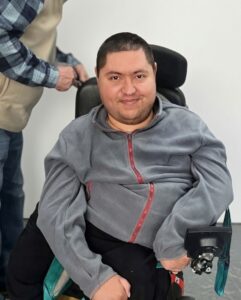
Maintenance and adjustment of my power wheelchair
During the setup and adjustment of my power wheelchair to better fit my needs.

Olga programmed profiles, adjusted settings, positioned supports, and fine-tuned every detail. She had brought professional tools, programming equipment, an OMNI module, multiple joysticks, and everything necessary to complete the installation properly.

She even brought an Xbox Adaptive Controller so that I could play games during the long winter months when getting outside becomes difficult.

After three days of work, the moment I had dreamed about finally arrived.

My first independent trip.

Winter had only recently loosened its grip. Snow still lingered in places, and the air remained cold.

I rolled out of the house.

Then out of the yard.

Everything felt unfamiliar.

The chin joystick still required practice.

But I was moving under my own control.

We headed toward the park where I used to walk my dog.

Along the way, I encountered a broken section of sidewalk. To get around it, I had to cross muddy ground.

The wheels began sinking.

For a moment I panicked.

Then I corrected my direction, backed up, and guided the chair safely onto solid ground.

It may have been a small obstacle.

To me, it was a historic victory.

Driving my power wheelchair through the neighborhood during an evening walk
Enjoying an evening walk in my power wheelchair.

We enjoyed a wonderful walk.

My dog ran happily through the park.

And for the first time in a very long time, I felt free.

The next day, we completed the final adjustments.

Then it was time to say goodbye.

I was genuinely sad to see Olga leave. During those intense weeks of preparation and those few remarkable days together, we had become friends.

Looking back now, I understand something important.

When my mother and I were struggling alone—watching YouTube videos, forcing bolts loose, stuffing foam into gaps, and building improvised solutions—we were doing our best. But we were operating in complete darkness.

No amount of determination could replace expertise.

Without Judi’s clinical insight, Levan’s technical knowledge, Olga’s incredible dedication, Bruce’s support, and Liz’s ability to bring everyone together, none of this would have happened.

Some problems simply cannot be solved alone.

They require skilled people who know exactly what they are doing.

Today, I navigate my home and city independently. We removed thresholds inside the house for smooth riding. I continue gaining confidence with the chin joystick every day. Olga even developed a simple solution that improved grip by covering the joystick with a special mesh material, preventing my chin from slipping.

The wheelchair that once represented pain and hopelessness has become a symbol of freedom.

Bobby enjoying a ride on the back of my power wheelchair during an evening walk
Bobby enjoying our evening walk together.

Most importantly, this experience reminded me that kindness still exists in the world.

A group of strangers chose to help someone they had never met.

They gave me back my independence.

They gave me back my freedom.

And what began as a desperate search for technical assistance became something much more valuable.

To this day, Liz, Olga, and I still talk regularly.

The story didn’t end there.

What started as a search for technical help eventually opened an entirely new chapter in my life. Over time, Liz gave me an opportunity that meant far more to me than I can adequately express. She invited me to join her team at Grassroots Open Assistive Tech and trusted me with the role of system administrator for the Grassroots Open Assistive Tech website, openassistivetech.org.

For someone who had spent so long feeling dependent on others, being trusted with real responsibility was incredibly meaningful. It wasn’t simply a job. It was a chance to contribute, to learn new skills, and to give something back to a community that had already changed my life.

When I think about everything that happened, I realize that I gained much more than a wheelchair. I regained my independence, found new friends, discovered an amazing community, and was given an opportunity to build a future that once seemed impossible.

For all of that, I will always be grateful.

What began as a desperate search for a way to drive a wheelchair ended up changing my life in ways I could never have imagined.

1 Comment

How I Actually Play Video Games With SMA: The Tools I Use Every Day

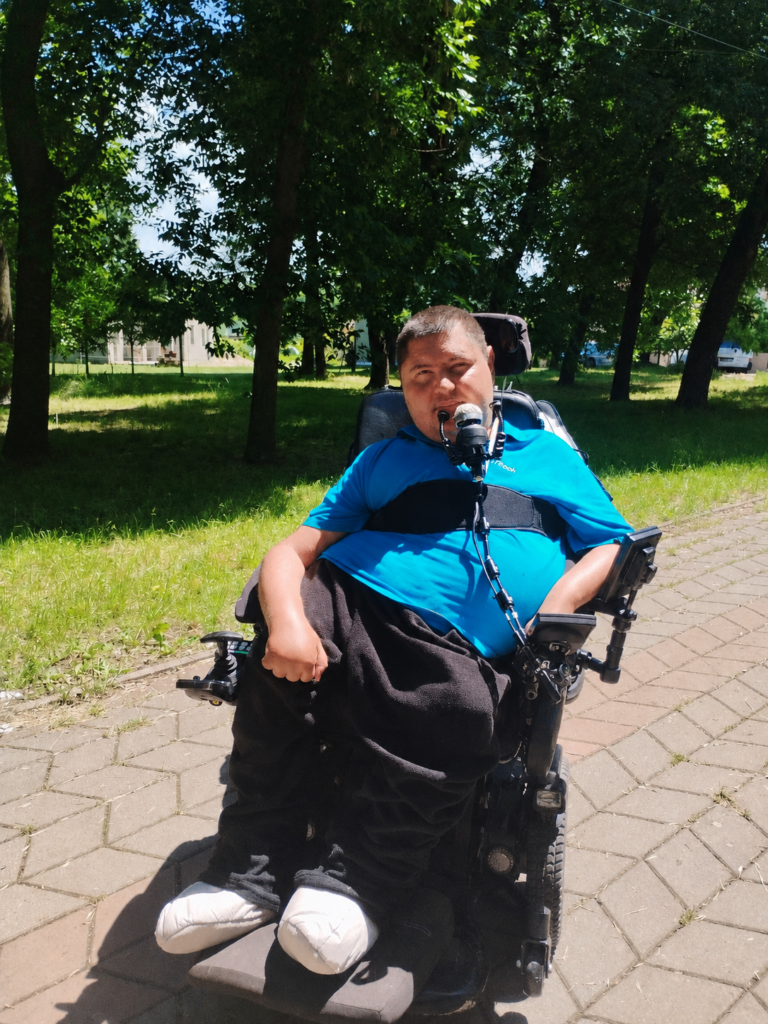
Man using a power wheelchair with chin control in a park
Independent outdoor mobility using a chin-controlled power wheelchair.

My name is Andrei Cebotar. I’m 37, I live in Moldova, and I have Spinal Muscular Atrophy.

My hands get tired fast — by the end of the day I often can’t feel them at all. I can press one mouse button. That’s mostly what I have to work with. And yet I play games, I write, I have conversations online. This is how.

This isn’t a neutral roundup. These are the tools I use to access my computer and play games. Some of them are part of my daily routine, others I tried and eventually stopped using. What works for me may not work for everyone, but this is the setup I’ve built around my own needs.


PlayAbility — my face is my controller

PlayAbility is a free Windows app that maps facial expressions and head movements to any game input. You set it up through a webcam — no extra hardware. And it works with any PC game that accepts a standard controller or keyboard.

Here’s what my setup actually looks like in practice: I raise both eyebrows — my character jumps. I raise my left cheek — I drink a potion. I raise my right cheek — I activate a specific skill. These are real mappings I use in real games, right now.

What makes this work is that the gestures feel natural after a while. You stop thinking “raise left cheek” and just do it. The response is fast enough that it doesn’t break the flow of gameplay. And because it creates a virtual Xbox controller in the background, the game has no idea you’re not using a standard input — no mods, no special settings needed.

It also works outside of games. You can map expressions to mouse clicks, scrolling, keyboard shortcuts. For someone with one working mouse button, that’s not a small thing.

PlayAbility is free. There’s a paid Pro version if you want unlimited profiles, but everything works without paying.


Handy — I speak, it types

Handy is a free, open-source speech-to-text app. You press a shortcut, speak, release — and your words appear in whatever text field your cursor is in. Any app, any website, anywhere on your computer.

I use it every single day. It has genuinely changed how I communicate. Typing is physically expensive for me — Handy removes that cost almost entirely for text. Messages, emails, search boxes — I speak instead of type.

What sets it apart from Windows Voice Access or cloud dictation tools is that it processes audio locally. Your voice never leaves your computer. It’s also simpler — one job, done well. Press, speak, done.

I used Windows Voice Access before Handy. It helped, but the accuracy wasn’t great. Handy is noticeably more reliable, and the local processing means it works without an internet connection.


Xbox Adaptive Controller — the foundation I build on

For a long time I didn’t use a standard keyboard at all. Instead I used the Razer Tartarus — a one-handed keypad with a stick and programmable buttons. It let me build exactly the macros I needed without reaching across a full keyboard. For someone with limited hand mobility, the compact layout and low-force buttons make a real difference.

More recently I moved to the Xbox Adaptive Controller, and it’s more flexible. It’s not a controller by itself — this is important to understand before you buy it. It’s a hub: a large flat surface with two big buttons and a row of 3.5mm ports on the back, each of which accepts an external switch, joystick, or pedal. You build the layout around your body, not the other way around.

I use it with a joystick and switch buttons. The physical switches require very little force — that matters when your hands tire quickly.

It works on PC and Xbox. If you’re on PlayStation, Sony has their own equivalent — the PlayStation Access Controller, which works on the same principle.

The Logitech Adaptive Gaming Kit is worth knowing about too — it’s a set of buttons, triggers, and switches designed to plug into the Xbox Adaptive Controller. It gives you more options without spending a lot.


Tobii Eye Tracker — useful, but I stopped using it

The Tobii Eye Tracker 5 sits below your monitor and tracks where you’re looking. In games, it moves the camera in the direction of your gaze. I used it to play Kingdom Come: Deliverance — wherever I looked, the camera followed. For an open-world RPG, that’s genuinely immersive and reduces the need to constantly move a stick just to look around.

The problem for me was physical. After extended sessions, my eyes hurt — the infrared tracking seemed to cause strain over time. I eventually stopped using it for that reason.

One thing worth knowing: Tobii’s native game integration moves the camera, but it doesn’t control your mouse cursor by default. For that you need a separate app called Project IRIS. It lets you control the mouse pointer with your gaze and set up interaction zones on your desktop — areas you look at to trigger actions like clicks or keypresses. It costs €39 and works with Tobii EyeX, 4C, and Eye Tracker 5. If you want to use eye tracking beyond games — for navigating Windows, browsing, anything — IRIS is what makes that possible.

If eye strain isn’t an issue for you, it’s worth trying. Eyeware Beam is a software alternative that uses a regular webcam or iPhone instead of dedicated hardware — cheaper, slightly less precise, but no infrared involved.


Talon Voice — powerful, but not for me

I also tried Talon Voice. It’s a free, highly capable hands-free input system — voice control, noise recognition, eye tracking, all combined. You can theoretically control your entire computer without touching anything: move the mouse, click, type, run scripts, even code.

The problem for me was false positives. Too many unintended triggers — the system would pick up ambient sounds or normal speech and fire commands I didn’t mean to send. Managing that became more work than the tool was saving me. I moved on.

That said, Talon has a large and active community, and people who invest time in configuring it properly seem to get a lot out of it. It’s also worth noting that it has a significant learning curve — the setup is technical, and it’s not a plug-and-play experience. If you’re comfortable tinkering, it might be worth exploring. If you want something that works quickly without deep configuration, Handy is a much simpler starting point for dictation.


The combination is the point

None of these tools solves everything on its own. What actually works is layering them. Right now, on a typical day, I’m using PlayAbility for in-game actions, Handy for any text I need to write, and the Xbox Adaptive Controller for movement. Each covers what the others can’t.

If you have SMA, cerebral palsy, muscular dystrophy, or any condition that limits fine motor control — the starting point I’d suggest is PlayAbility and Handy. Both are free, both require nothing beyond a webcam and microphone, and both can meaningfully change what’s possible at a computer, not just in games.

The hardware — adaptive controllers, eye trackers — comes later, once you know what gaps remain.


In a follow-up piece, I write about where I think this is all heading — specifically, EMG wristbands and what they could mean for people like me. But that’s the future. This is what works right now.

1 Comment

Handy: The Dictation App That Actually Respects You

Handy app logo
The Handy logo. Handy is a speech-to-text and augmentative and alternative communication (AAC) application.

Free. Open-source. Offline. And no, there’s no catch.

Imagine an app that does exactly what you ask, nothing more, nothing less — no subscription pop-ups, no word limits, no account to create, no server quietly sipping your voice data in the background. That’s Handy in a nutshell. And in a world where every other dictation tool seems to be one pricing tier away from truly working, that alone feels almost radical.

Handy was born out of necessity. Developer CJ Pais built it after a finger injury made typing genuinely painful. He needed a simple, reliable way to speak text into any app on his computer, and when nothing out there satisfied him, he made it himself. The result is a lean, no-nonsense speech-to-text tool that now sits at over 23,000 GitHub stars and keeps shipping new versions at a pace that would embarrass many commercial products.

But for some people, Handy isn’t just a convenience tool. It’s something more fundamental than that.


A Personal Story: When Typing Stops Being an Option

I have a progressive illness. For a long time, I typed with one finger — slowly, carefully, one hand doing the work of two. Fifteen minutes was about my limit before my hand started protesting. Then even that became too much, and I found myself reduced to short phrases, a couple of words at a time. Conversations became exhausting. Writing an email could take days.

For a while, I switched to an on-screen keyboard and a mouse. The built-in autocomplete made it manageable — surprisingly usable, actually — but overworking that one remaining finger eventually caused inflammation, and the cycle repeated. Back to short phrases. Back to silence.

Then Microsoft released their Voice to Speech feature in a Windows update, and for a while it felt like a lifeline. I could speak again. I could write again. Real messages, real length, real conversations — not just a word or two squeezed out between rests. But the tool was unreliable. It made a lot of errors, froze regularly, and the recognition quality just wasn’t there for serious use.

The breakthrough came through a friend. We were both dealing with similar situations — he has SMA too — and when I showed him the Microsoft tool, it turned out his older Windows version didn’t support it at all. So we went looking for something else. And we found Handy.

It’s not an exaggeration to say it changed things. Fast, accurate, works in whatever app is active, supports multiple languages including English, Romanian and Russian, completely free. For two people who had spent years adapting to shrinking communication windows, getting that back was quietly significant.

I mention this not to make the review sentimental, but because it’s context that matters. Handy gets reviewed mostly by developers and tech enthusiasts who treat it as a workflow optimisation. That’s a legitimate perspective. But the app also quietly serves people for whom it’s less about convenience and more about participation — in conversations, in correspondence, in ordinary online life. The fact that it’s free, open-source, and doesn’t require an account or a subscription isn’t just a nice detail. For some users, it’s what makes it accessible at all.

CJ Pais built Handy after a hand injury. Some of his users are still dealing with theirs.


What Handy Actually Does

The pitch is beautifully simple: hold a hotkey, speak, let go — and your words appear in whatever text field currently has focus. Browser, code editor, notes app, messenger, email client — Handy doesn’t know or care what’s open. It just pastes the transcription and gets out of your way.

Everything happens locally. When you speak, no audio is sent to any server. The model runs right on your machine, processes what you said after you stop speaking, and delivers the result in roughly 2 to 5 seconds. It’s not instant — that’s one of Handy’s honest trade-offs — but your voice stays yours.


Key Features, Honestly Described

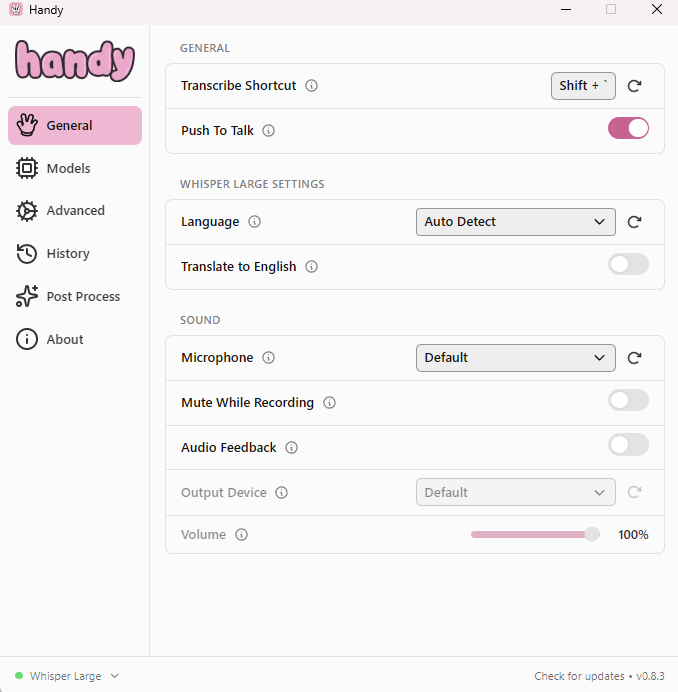
Handy General settings
General settings — hotkey configuration, push-to-talk mode, microphone and audio options.

Push-to-talk by default — hold the hotkey while you speak, release when you’re done. There’s also a toggle mode if you’d rather not hold anything. The shortcut is fully configurable from the General tab.

Auto-paste — the transcribed text lands directly in whatever app you’re using, no copy-paste step needed. One caveat: if you switch windows during the 2–5 second processing window, it can paste in the wrong place. Stay focused and it works beautifully.

Language and translation — language can be set to Auto Detect or locked to a specific one. Some models also support optional translation to English, toggled right from the General settings.

Voice Activity Detection (Silero VAD) — Handy trims silence from your recordings before processing. You don’t have to be precise about when you stop speaking; it handles the cleanup.

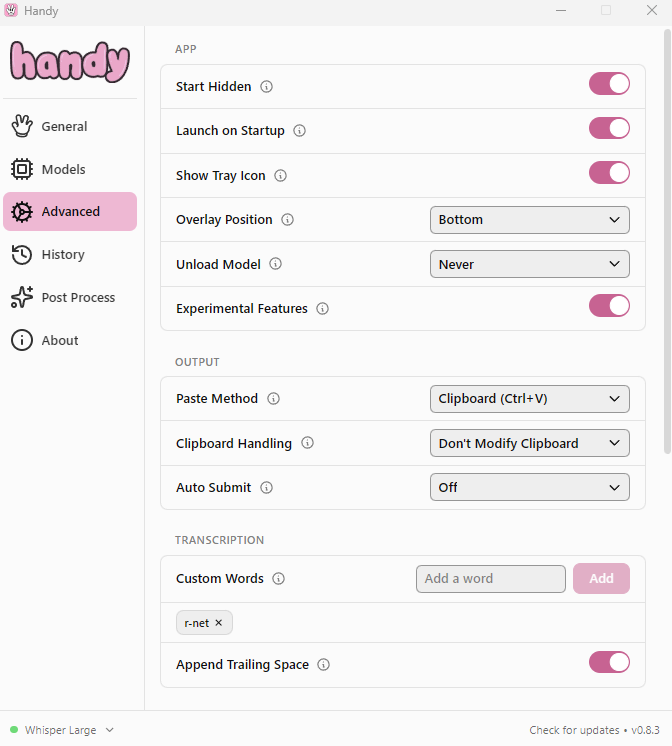
Handy Advanced settings
Advanced settings — paste method, clipboard behaviour, custom word list, and experimental features.

Custom word lists — you can train Handy to recognise names, jargon, technical terms, and anything else the base models tend to mangle. Words are added one by one from the Advanced tab.

Paste Method — by default Handy uses Clipboard (Ctrl+V), but this can be changed in Advanced settings depending on your system and workflow.

Start Hidden / Launch on Startup / Tray Icon — Handy is designed to live quietly in the background. Toggle these from Advanced to make it fully invisible until you need it.

Overlay Position — a small recording indicator appears on screen while you speak; you can pin it to the bottom, top, or corners.

Command-line interface — a full CLI for scripting, automation, and integration into development workflows.

Raycast extension on macOS — for Mac users who live inside Raycast, Handy plugs in natively.

Recording history — your recent transcriptions are stored locally in the History tab so you can revisit them at any time.

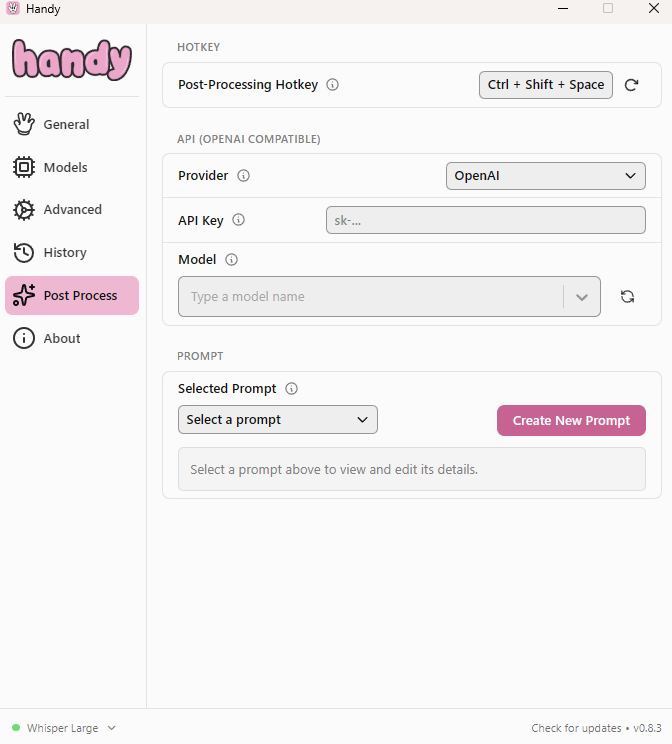
Handy Post Process settings
Post Process tab — connect any OpenAI-compatible LLM to clean up, reformat, or transform your transcription.

LLM post-processing — the Post Process tab lets you connect any OpenAI-compatible API (OpenAI, local models via Ollama, or others) to run a custom prompt over your transcription after it’s done. Clean up filler words, reformat into bullet points, summarise — whatever prompt you write. You can create and save multiple named prompts and trigger them with a dedicated hotkey (Ctrl+Shift+Space by default).


Platform Support: The Linux Story

Here’s where Handy separates itself from almost everything else in the dictation space: it runs on Linux.

macOS has no shortage of polished dictation apps. Windows is covered. Linux users have historically been stuck with whatever their distro’s built-in accessibility tools could manage. Handy supports Ubuntu 22.04 and 24.04 out of the box, with Wayland and X11 both handled.

This alone has made Handy something of a cult favourite in the Linux and open-source communities.


Privacy: The Simplest Story Possible

There is no cloud transcription mode. There is no telemetry pipeline. There is no account, no profile, no usage data being collected. The only network activity Handy performs is downloading models when you first set it up, and optionally checking for updates.

Since the code is MIT-licensed and publicly available on GitHub, anyone who wants to verify these claims can read every line of it.


Under the Hood: Every Model, Explained

Handy isn’t locked to a single AI engine — it lets you choose from a broad lineup of local speech models. The right choice depends on your language, hardware, and how much you care about accuracy vs. speed. All models run entirely on your machine; none send audio to the cloud.

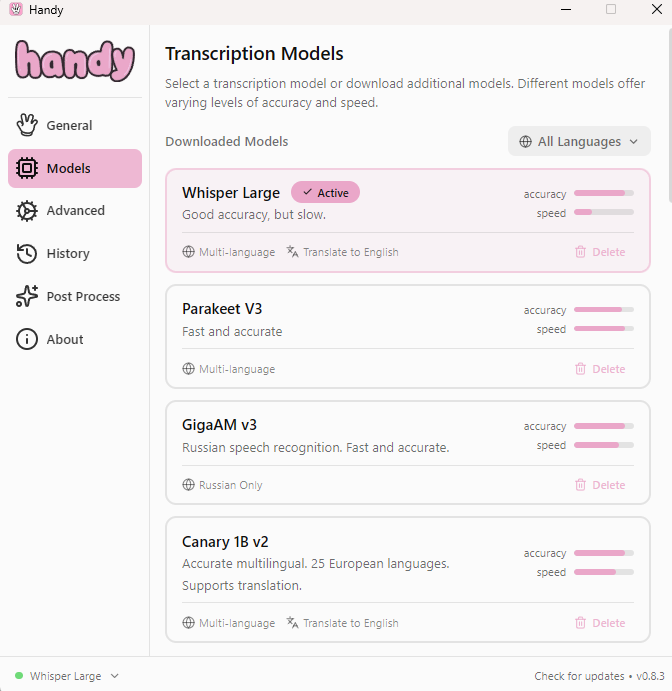
Handy Transcription Models screen
The Models screen — downloaded models at the top, available for download below. Whisper Large is currently active.

At a Glance

Model Size Languages Speed Best For
Whisper Large ★ ~1.1 GB 99+ Slower Maximum accuracy, multilingual
Whisper Turbo ~1.5 GB 99+ Moderate Speed + quality balance
Whisper Medium ~469 MB 99+ Moderate Good all-rounder
Whisper Small ~465 MB 99+ Fast Low-resource multilingual
Parakeet V3 ★ ~478 MB 25 European Fast Best default, CPU-only
Parakeet V2 ~451 MB English only Fast English speed
GigaAM v3 ~225 MB Russian only Fast Best Russian model
Canary 1B v2 ~692 MB 25 European Moderate European + translation
Canary 180M Flash ~146 MB 4 languages Fast Lightweight translation
Breeze ASR ~1.0 GB Multilingual Moderate Taiwanese Mandarin
SenseVoice ~152 MB 5 East Asian Fastest Chinese/Japanese/Korean
Moonshine Base ~55 MB English only Very fast Ultra-light English
Moonshine V2 Tiny ~31 MB English only Fastest Minimum footprint
Moonshine V2 Small ~99 MB English only Very fast Speed + accuracy balance
Moonshine V2 Medium ~192 MB English only Fast Better English quality
Custom GGML any depends depends Power users

★ My personal daily drivers — for different reasons, as explained below.

Whisper Family (OpenAI)

The model family that started the local speech-to-text revolution. Supports 99+ languages and optional translation to English. One important caveat across all Whisper variants: they can hallucinate — inventing words during silences. It doesn’t show up in benchmarks, but it shows up in real use.

Whisper Large (~1.1 GB) — My primary model.
The flagship. Highest accuracy across all 99+ languages, best on accents, technical vocabulary, and complex sentence structure. Slow — expect 3–5 second delays — and needs a capable GPU on Windows/Linux. But when accuracy matters most, nothing in the Whisper family beats it.

Whisper Turbo (~1.5 GB)
Optimised for speed without sacrificing much quality. A strong choice for Apple Silicon users. Doesn’t support translation. Can be unstable on some Windows/Linux GPU setups.

Whisper Medium (~469 MB)
The sensible middle ground. Good accuracy, reasonable speed, supports translation. A solid all-rounder.

Whisper Small (~465 MB)
The lightest Whisper. Fast and low on resources. Accuracy is the weakest in the family — struggles more with accents and background noise.

Parakeet Family (NVIDIA)

NVIDIA’s open answer to Whisper — Apache 2.0 licensed, lower hallucination rate, runs CPU-only. Numbers come out as words rather than digits. Auto-detects language.

Parakeet V3 (~478 MB) — My second daily driver, and the one I’d recommend to most people first.
Fast, accurate, CPU-only, automatic language detection across 25 European languages including Romanian and Russian. On Apple Silicon it approaches near-real-time.

Parakeet V2 (~451 MB)
English only. Largely superseded by V3.

GigaAM v3 (Sberbank / SaluteDevices)

The best Russian speech recognition model in Handy. Trained on 700,000 hours of Russian speech data. Outperforms Whisper Large on Russian benchmarks by a significant margin. Small footprint (~225 MB), fast, CPU-only. If you dictate in Russian, this is the model to use.

Canary Family (NVIDIA)

Transcription and translation across European languages. Important: Canary does not auto-detect language — always set it manually, otherwise it translates instead of transcribing.

Canary 1B v2 (~692 MB) — 25 European languages, full translation, high accuracy.
Canary 180M Flash (~146 MB) — English, German, Spanish, French only. Fast and light.

Breeze ASR

Optimised for Taiwanese Mandarin with code-switching support — handles sentences that mix Mandarin and other languages mid-phrase. Around 1.0 GB. The best Handy option for Taiwanese Mandarin.

SenseVoice (FunAudioLLM / Alibaba)

The fastest model in the lineup. Covers Chinese (Mandarin and Cantonese), English, Japanese, and Korean. At ~152 MB it’s compact and transcribes extremely quickly. Ideal for East Asian language users who want the fastest possible response time.

Moonshine Family (Moonshine AI)

English-only models built for efficiency. Despite their tiny size, they match or beat Whisper Large on English benchmarks. Low hallucination rate, CPU-only.

Moonshine V2 Tiny (~31 MB) — the smallest model in all of Handy. Nothing lighter exists.
Moonshine V2 Small (~99 MB) — good balance of speed and quality.
Moonshine V2 Medium (~192 MB) — better accuracy, still fast. Recommended Moonshine pick.
Moonshine Base (~55 MB) — original model. Very fast, good on accents.

Custom GGML Models

Any Whisper-compatible .bin model file dropped into Handy’s models/ folder will appear in the picker on next launch. No official support — quality depends entirely on the model you bring.

How to Choose

  • Starting fresh? → Parakeet V3. Fast, smart, works on CPU, handles English, Romanian and Russian.
  • Need maximum accuracy? → Whisper Large.
  • Dictating in Russian? → GigaAM v3. It’s not even close.
  • Need translation too? → Canary 1B v2.
  • Old or low-powered hardware? → Moonshine V2 Medium or Moonshine Base.
  • East Asian languages? → SenseVoice.
  • Taiwanese Mandarin? → Breeze ASR.
  • Absolute minimum footprint? → Moonshine V2 Tiny at 31 MB.

The Trade-Offs (Because Nothing is Perfect)

Handy doesn’t clean up your words — you get verbatim output, exactly what the model heard. There’s no AI rewriting, no filler-word removal, no tone adjustment. If you want polished text, you’ll do that editing yourself.

There’s no mobile app. Handy is desktop-only.

The transcription delay — that 2 to 5 second window after you stop speaking — is a real workflow adjustment. Occasionally the first word or two of a transcription gets clipped. Bluetooth microphones add another second or two of latency, though the “Always-On Microphone” setting largely solves that.

None of this is dealbreaking for what Handy is. It’s a young open-source project, version 0.8.3 as of mid-2026, and the version numbering is the developer’s candid way of saying: we’re still building this, but what’s here works.


The Bottom Line

Handy is the rare piece of software that does exactly what it says, costs nothing, respects your data completely, and actually ships updates. The project has real momentum, a growing community, and a developer who built it to scratch his own itch — which is historically how the best tools get made.

For developers and power users, it’s a flexible, hackable, privacy-respecting dictation layer that fits into any workflow. For people who type with one finger, or can’t type at all — it’s something quieter and more important than that. It’s a way back into the conversation.

It’s not trying to be everything. It’s trying to be one thing, done well. And for a lot of people, that’s more than enough.

Download: handy.computer  ·
Source code: github.com/cjpais/handy  ·
Documentation: handy.computer/docs

Leave a Comment